
In this post we shall be describing on how to use and set up one of our plugins – WooCommerce Addon Uploads Pro. WooCommerce Addon Uploads Pro allows file uploads possible on Product Pages.
Contents
- Installation
- Configuring the plugin
- Ease of use for customers
- Ease of use for shop managers
1. Installation
After purchasing the plugin from here, installation is quite simple like other WordPress plugins. Upload the zip to Plugins -> Add New and upload the file.
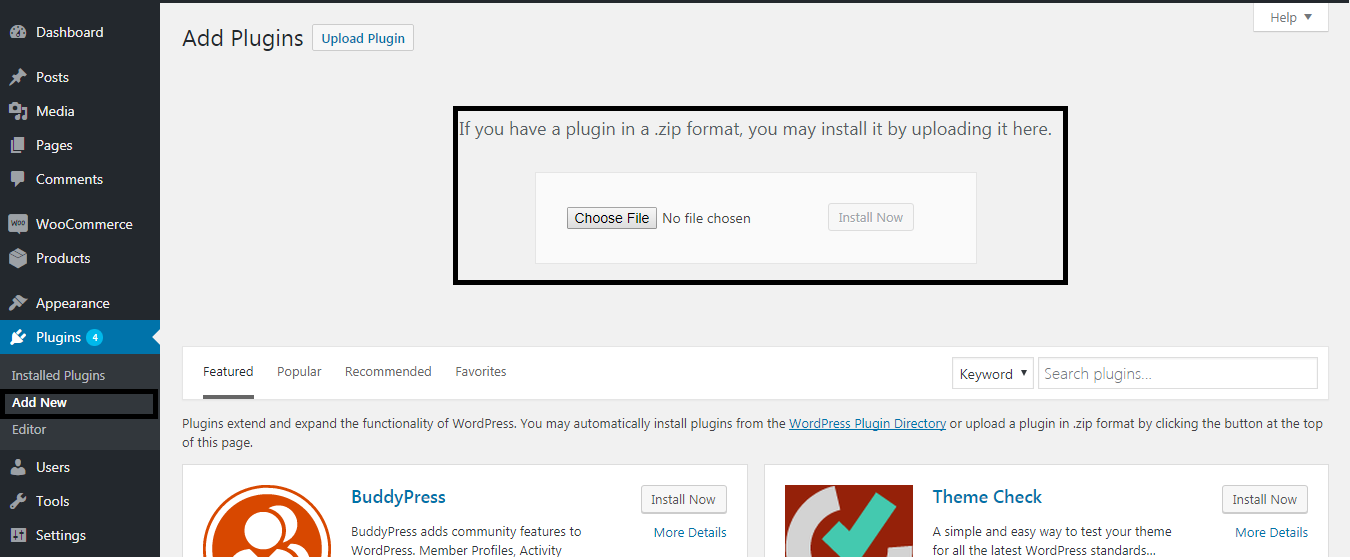
Once uploading and activation of the plugin is done we are all set to go with configuring the plugin settings
2.Configuring the plugin
Once the plugin is activated, a new menu will be added in the dashboard menu as Addon Upload Settings.
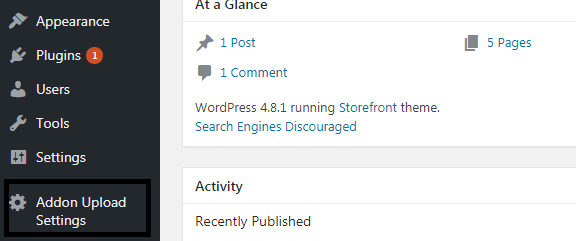
Now let us consider the different settings we have for configuring our uploader on all the products page.
As of version 2.0.0 we introduced product level enable/disable of file uploads. Whenever you click on Add or Edit product you will see an additional tab like the one shown below with the File Upload Settings:
In version 3.0.0 along with enable/disable of file uploads we have added an option for multiple uploads of files which allows users to set minimum and maximum number of files that can be uploaded.
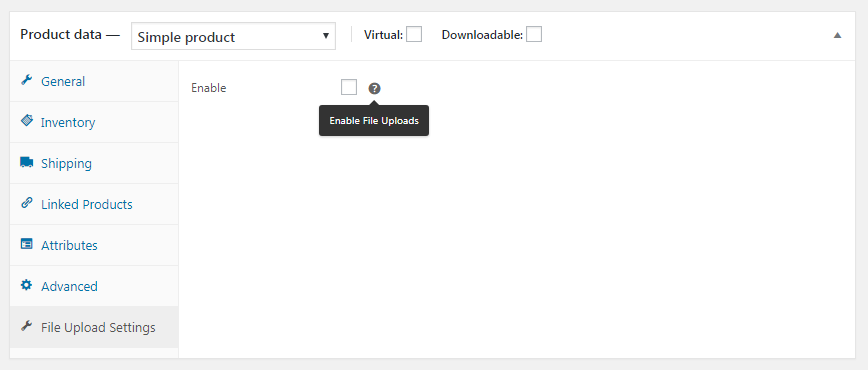
Enable Addon Uploads: Enabling this setting enables the uploader on each of the product pages. After enabling this option each product will be similar to the one shown below:

Addon Upload Global Settings
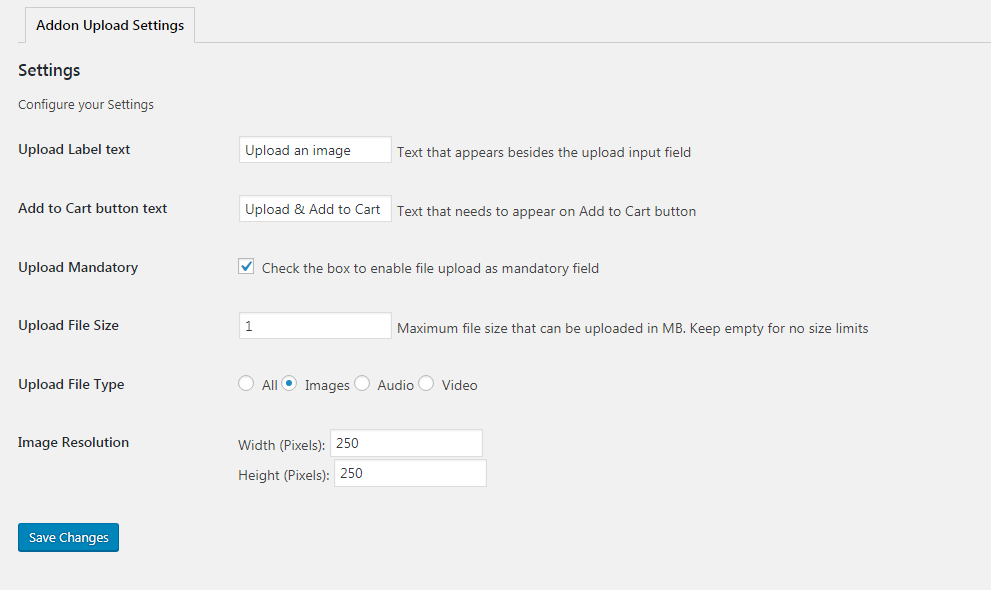
Upload Label Text: This text is used for displaying label before the uploader. If the setting is saved as Upload an image then the same shall be displayed as shown in the image above.
Add to Cart button text: This setting is used for adding custom text to Add to Cart button. If value is set to Upload & Add to cart then the product page will have a look similar to the one shown above
Upload Mandatory: On enabling this setting, customers wont be allowed to Add product to cart until a valid file is not provided. When this setting is enabled, customers will be receiving warning message to upload a valid file.

Upload File Size: This setting will restrict the size of the file to be uploaded. Warning messages will be displayed if the size of the file is more than this setting.
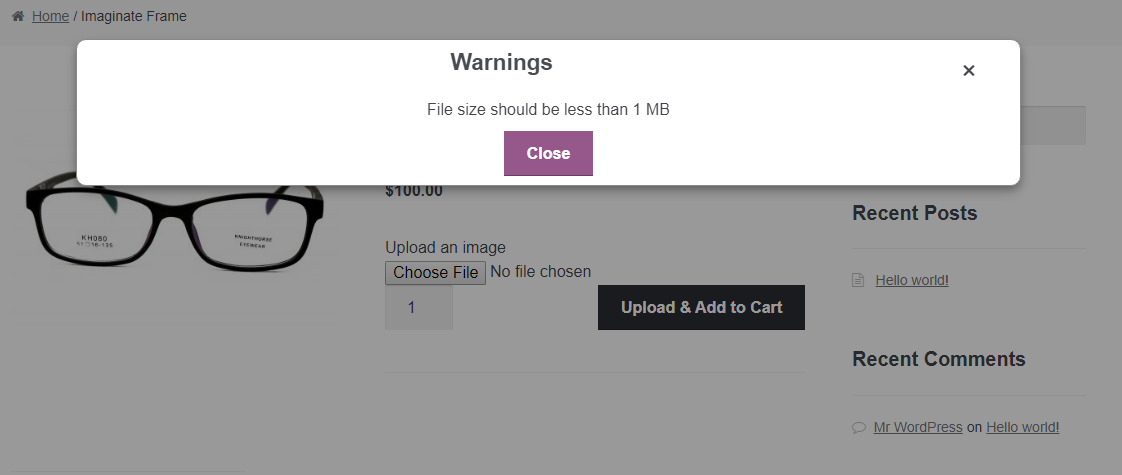
Upload File Type: As of now currently we are providing only media files as filters for the files to be uploaded i.e. Images, Audio and Video. Apart from that we have an option to allow all the files to be uploaded.
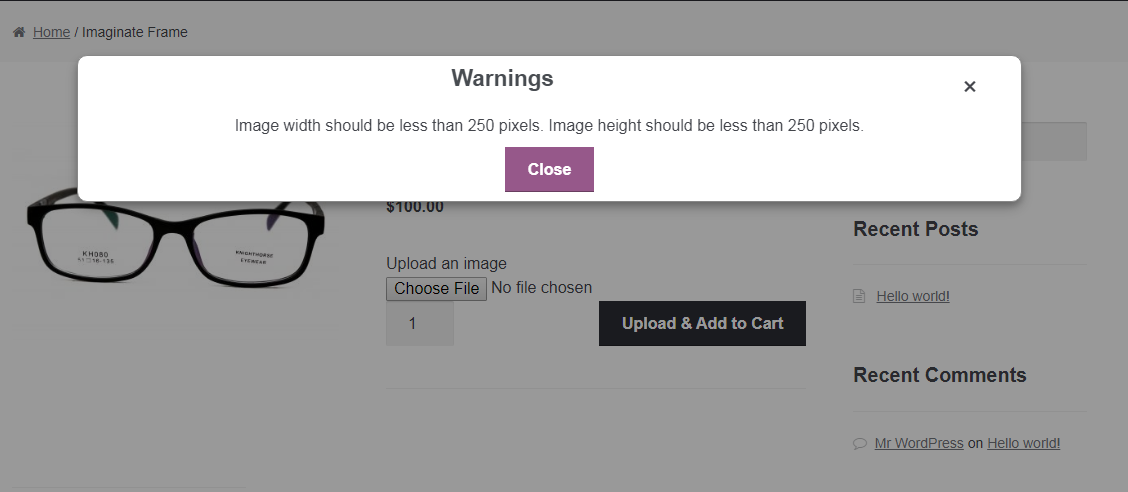
Image Resolution: As of version 2.0.0 we have introduced image resolution restrictions during uploading files before add to cart. As shown in the settings screen above we have options for providing max resolution of the image to be uploaded in the form of pixels. When this setting is provided, a pop up message shall be displayed like the one displayed below indicating appropriate message.
3. Ease of use for customers
- We have tried our best in maintaining the user experience and the ease of use with which the customers can upload their files and at the same time validations which the shop owner wants be managed. For these reasons we have used a modal pop up indicating the validation messages to be displayed once file is being selected.
- Also the advantage of the plugin is the areas in ecommerce industry where uploading pre required information might be helpful in completing the orders in a faster and efficient way.
4. Ease of use for shop managers
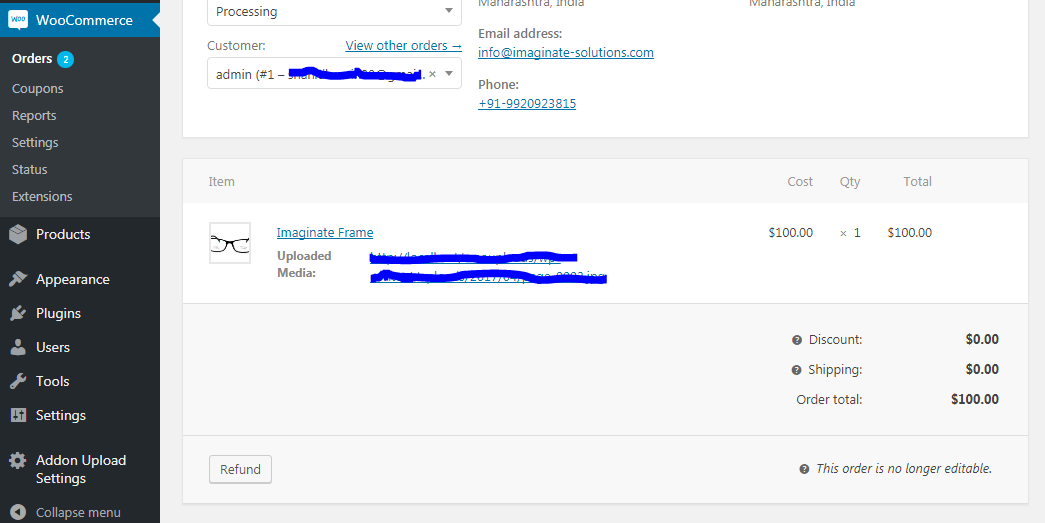
- This addon helps shop managers in processing and completing the orders and efficient and faster way since the required information is already available from customer itself at the time of adding product to cart.
- This uploaded file is available in the admin area for which the order was placed as shown below
Conclusion
WooCommerce Addon Uploads Pro enables shop managers to manage pre required information in the form of file uploads before adding products to cart for a faster and efficient order creation and completion process.