

Running a WooCommerce store means dealing with order data almost every day. Whether you are preparing monthly sales reports, sharing order details with your fulfilment team, or sending information to your accountant, there will be times when you need to export orders from WooCommerce.
But how do you actually export WooCommerce orders?
If you have explored the WooCommerce dashboard, you may have noticed something interesting. WooCommerce includes an option to export products, but there isn’t an equivalent built-in order export tool with the same flexibility.
You can download order information from WooCommerce > Analytics > Orders, but that gives you a CSV report based on the available analytics columns. It does not let you build a fully customized order export with any combination of billing details, shipping addresses, product SKUs, quantities or custom order fields.
In this guide, we will look at what WooCommerce provides by default, where its limitations become apparent, and how to export exactly the order information you need into CSV, Excel, XML, PDF or JSON files.
We will also cover how to automate recurring exports when manual downloads are no longer practical.
Can You Export Orders from WooCommerce Without a Plugin?
Yes, but with some limitations.
WooCommerce includes a built-in Analytics section where you can review sales performance, products, customers and orders.
To access the order report:
- Open your WordPress dashboard.
- Navigate to WooCommerce > Analytics > Orders.
- Select the date range you want to analyze.
- Apply any relevant filters.
- Review the orders displayed in the report.
- Click Download to export the report as CSV.
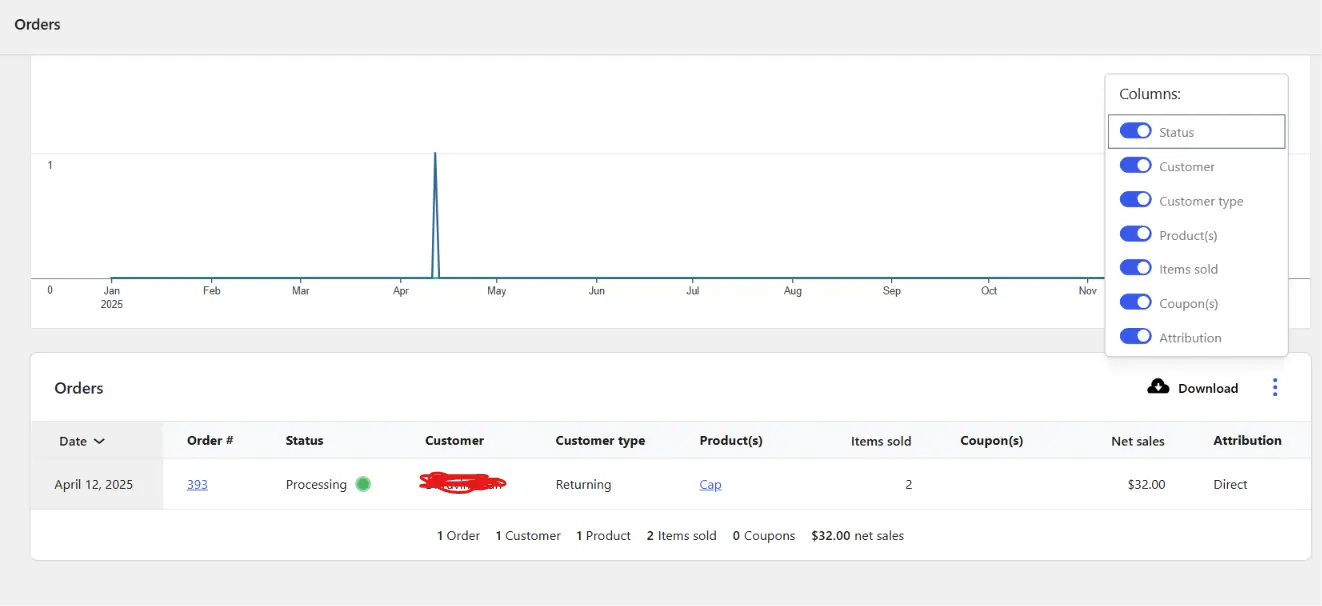
The Orders report includes information such as order date, order number, status, customer, products, items sold and net sales.
You can also apply filters, including order status, products, coupons and customer type. The available filters depend on the Analytics report and your WooCommerce configuration.
The columns menu lets you show or hide supported report columns.
For a store owner who wants to review sales for a particular month, this functionality can be sufficient.
For example, if you simply want to download a CSV containing your recent sales report, there’s no need to install another plugin.
However, the situation changes when you need the underlying order information for a specific business task.
What Are the Limitations of WooCommerce’s Default Order Export?
The main limitation is that WooCommerce Analytics is designed for reporting and analysis, rather than acting as a general-purpose order-export builder.
Consider a few everyday scenarios.
Your accountant needs billing details and taxes.
A report showing net sales is useful, but your accountant might need order IDs, billing addresses, tax amounts, payment methods and other fields in a specific arrangement.
Your fulfilment team needs shipping information.
They may need customer names, shipping addresses, product SKUs, quantities and shipping methods. Some of this information isn’t available as customizable columns in the standard Analytics report.
Your integration needs XML or JSON.
WooCommerce Analytics provides CSV downloads. If another application requires XML or JSON, the default report doesn’t generate those formats directly.
Your store uses additional checkout fields.
Perhaps you’re collecting delivery dates, gift messages, personalization details or information added by another WooCommerce plugin. These values may be stored as custom order metadata rather than standard analytics fields.
You prepare the same report every week.
Downloading a CSV and rearranging it manually every Monday quickly becomes repetitive. You might prefer a saved configuration and automatic file delivery.
These are the situations where a dedicated order-export plugin becomes useful.
It’s also worth noting that WooCommerce includes a separate product CSV exporter under Products > All Products. That tool is intended for product information, not for building detailed exports of customer orders.
How to Export WooCommerce Orders to CSV, Excel, XML, PDF or JSON
If you need more control over the information included in an export, you can use Export Orders for WooCommerce.
The Free version lets you select order fields, filter records, change column order and generate files in five formats:
- CSV: Suitable for spreadsheets, accounting workflows and many data imports.
- Excel (XLSX): Useful when your team wants a native Excel workbook.
- PDF: Helpful for readable reports and documents.
- XML: Often required by systems that exchange structured information.
- JSON: Useful for applications and custom integration workflows.
All five formats are available in the Free version. You don’t need Pro just to export orders to Excel, XML or JSON.
Let’s walk through the process.
Step 1: Install Export Orders for WooCommerce
Start by installing the plugin on your WordPress website.
Open Plugins > Add New Plugin, then search for Export Orders for WooCommerce.
Install and activate the plugin.
Alternatively, you can get it directly from the official WordPress plugin directory:
Download Export Orders for WooCommerce — Free
After activation, you’ll have access to the plugin’s order export interface.
The export screen can also be opened from the WooCommerce Orders area, making it convenient to create exports while working with your orders.
Step 2: Choose Which WooCommerce Orders to Export
The first decision is which orders belong in your report.
Export Orders lets you narrow your selection using date ranges and order statuses.
For example, you might want:
- All completed orders from the previous month.
- Processing orders received during the past week.
- Orders within a specific accounting period.
- Orders matching the statuses relevant to your workflow.
Suppose your accountant needs a report covering October 2026.
You can set the start date to October 1, the end date to October 31, and select the appropriate order status.
This helps ensure the report includes the relevant orders rather than downloading unrelated records that need to be removed afterward.
Step 3: Select the Order Fields You Need
This is where a dedicated order-export tool becomes particularly useful.
Rather than downloading a predefined Analytics report, you can choose the fields that belong in the exported file.
Export Orders provides standard fields covering different parts of a WooCommerce order.
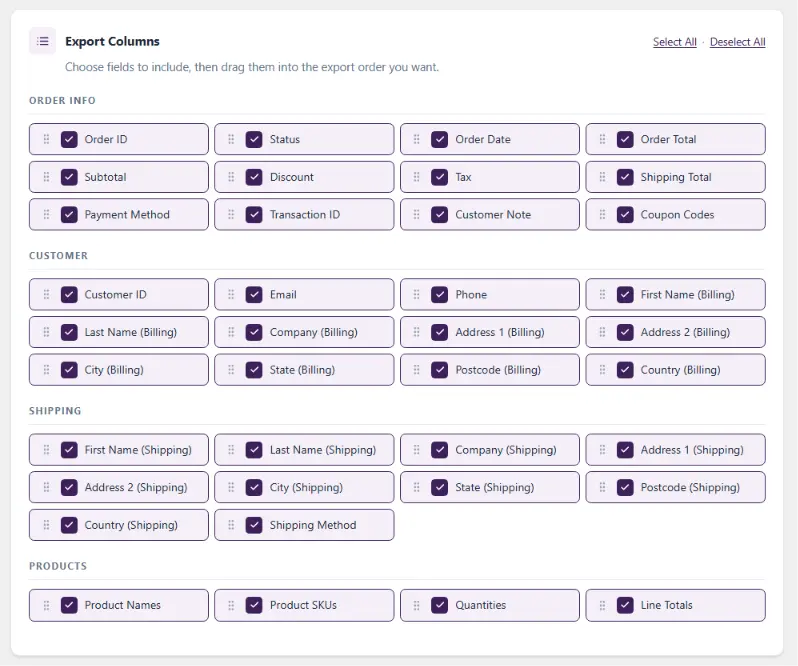
Order information
Include details such as the order ID, order date, status, total, discounts, tax amounts and payment information.
Customer information
Export customer names, email addresses, telephone numbers and other supported customer details.
Billing and shipping information
Select billing and shipping addresses, countries, postal codes and related details needed for accounting or fulfilment.
Product and line-item information
Include product names, SKUs, quantities, item totals and other supported order-item fields.
Additional order information
Depending on the selected fields, you can include information such as coupon codes, customer notes and shipping charges.
The benefit is that you can build a report around the actual task.
For example, a fulfilment export might only require:
| Order ID | Product SKU | Quantity | Customer | Shipping postcode |
|---|---|---|---|---|
| 1001 | CAP-BLUE | 2 | Customer A | 10001 |
| 1002 | TSHIRT-M | 1 | Customer B | 90210 |
| 1003 | MUG-WHITE | 3 | Customer C | 60601 |
There’s no reason to include unrelated billing fields or payment information if your fulfilment team doesn’t need them.
Step 4: Arrange the Columns in Your Preferred Order
Selecting the right fields is only part of preparing an export.
The order of those columns matters too, especially when you’re handing data to another team or importing it into another application.
Export Orders includes drag-and-drop column ordering, so you can arrange selected fields before generating the file.
For example, your accounting department may prefer:
Order ID → Date → Customer → Subtotal → Tax → Shipping → Total
Your fulfilment team may prefer:
Order ID → SKU → Quantity → Customer Name → Shipping Address
Both reports come from the same WooCommerce store, but they serve different purposes.
By arranging the fields before exporting, you can reduce the amount of manual spreadsheet editing required afterward.
Step 5: Choose the Export Format
Next, choose the file format.

If you’re working with Microsoft Excel, select XLSX. If another application requires a CSV file, choose CSV.
For integrations that accept structured data, XML or JSON may be more suitable.
You can also generate a PDF when a readable report is more useful than a spreadsheet.
One important distinction: a CSV file can usually be opened in Excel, but it isn’t the same as an XLSX workbook. If your workflow specifically requires an Excel file, choose XLSX rather than assuming a renamed CSV will be equivalent.
For XML and JSON integrations, always confirm that the exported structure matches the requirements of the receiving application. Choosing a supported file format doesn’t automatically guarantee compatibility with every external system.
Step 6: Review and Generate the Export
Before generating the file, review your selected date range, statuses, fields and column order.
Once everything looks correct, start the export.
The plugin processes the matching orders and generates a file in your selected format.
You can follow batch progress during processing, which is particularly useful when working with more than a handful of orders.
After the export finishes, download the file and verify that it contains the expected information.
If you’re creating an export for a new accounting or fulfilment workflow, we recommend testing a small date range first. Confirm the columns, values and formatting before using the export with a larger dataset.
Practical Examples of WooCommerce Order Exports
The real benefit of configurable exports becomes clearer when we look at how different teams might use them.
Example 1: Export WooCommerce Orders to Excel for Accounting
Let’s say your accountant needs a monthly spreadsheet of completed orders.
Instead of downloading the default Analytics report and editing it manually, you can create an Excel export containing the order date, order ID, customer details, tax, discounts, shipping charges, payment method and total.
Choose the relevant month, select completed orders, arrange the accounting fields and export the file as XLSX.
The result is a spreadsheet based on the fields your accountant actually requested.
Example 2: Export WooCommerce Orders to CSV for Fulfilment
A fulfilment partner often needs different information.
They may want order IDs, product SKUs, quantities, customer names, shipping addresses and shipping methods.
You can select processing orders, include the necessary fields and export the results as CSV.
This avoids sending unnecessary financial or customer information to teams that don’t need it.
Example 3: Export WooCommerce Orders to XML or JSON
Sometimes you need to share order information with another application rather than a person.
For instance, a custom reporting system might accept order data in JSON, while a particular business integration may require XML.
Export Orders lets you generate either format using the selected order information.
Before importing the file into another system, verify the expected field names and data structure. Some systems require a particular schema or additional transformation.
How to Export Custom WooCommerce Order Fields
Standard WooCommerce fields aren’t always enough.
Many stores use additional plugins to collect information during checkout or attach details to an order.
Examples include delivery dates, gift messages, engraving text, personalization options and other custom requirements.
Depending on the extension, these values may be stored as custom order or order-item metadata.
Export Orders Pro supports additional order and order-item metadata, allowing you to include supported custom information in your reports.
You can discover available metadata fields from existing orders or specify supported metadata keys manually.
For example, a store selling personalized gifts might need an export containing the order number, product SKU, engraving text and requested delivery date.
Pro can help prepare that report when those additional values are stored as supported metadata.
Not every WooCommerce extension stores its information in the same way, so it’s important to verify where a particular custom field is saved.
How to Automatically Export WooCommerce Orders
Manual exports are useful when you need information occasionally.
But what if your business needs the same report every morning?
Perhaps your fulfilment team receives a CSV file every weekday, or your accountant needs an Excel report at the beginning of each month.
Creating those reports manually becomes another recurring administrative task.
This is where Export Orders Pro adds a different kind of value.
Save reusable export configurations
Instead of selecting the same fields and arranging the same columns each time, Pro lets you save reusable export templates.
You can maintain different configurations for accounting, fulfilment and other reporting requirements.
Schedule recurring reports
Pro supports hourly, daily, weekly and monthly exports.
For example, you can configure a daily export of recent processing orders or a recurring accounting report.
Deliver files automatically
Generated exports can be delivered to configured destinations including Google Drive, Dropbox and FTP. Email notifications with optional attachments are also supported.
This can eliminate the extra step of downloading a file and manually sending it to another team.
Review export history
Pro includes export history and background-processing information so you can review completed jobs, order counts, status and delivery results.
Schedules and destinations are configured in WordPress. Successful automatic processing depends on your site’s scheduled-task system being maintained correctly.
Explore Export Orders Pro Features and Pricing
WooCommerce Default CSV Report vs Export Orders: What’s the Difference?
Here’s a summary of when each option is useful.
| Capability | WooCommerce Analytics | Export Orders Lite | Export Orders Pro |
|---|---|---|---|
| Download order-related CSV | Yes | Yes | Yes |
| Select dedicated export fields | Limited to report columns | Yes | Yes |
| Rearrange export field order | No dedicated field-order builder | Yes | Yes |
| Excel (XLSX) export | No | Yes | Yes |
| PDF, XML and JSON exports | No | Yes | Yes |
| Custom order/item metadata | Not through the standard Analytics report | No | Yes, supported metadata |
| Saved export templates | No | No | Yes |
| Scheduled exports | No | No | Yes |
| Automatic cloud delivery | No | No | Yes |
If you need specific order fields or multiple file formats, Export Orders Free provides more flexibility.
If you’re preparing recurring reports, working with custom metadata or delivering files to external destinations, Pro provides those additional capabilities.
Frequently Asked Questions
Does WooCommerce have a built-in order export option?
WooCommerce Analytics includes a CSV download for its order report. However, it does not provide the same configurable order-export functionality as a dedicated plugin. WooCommerce also includes a separate built-in CSV export tool for products.
Can I export WooCommerce orders to Excel without paying?
Yes. Export Orders for WooCommerce supports Excel (XLSX) exports in its Free version. CSV, PDF, XML and JSON are also included.
Can I export WooCommerce orders with customer and shipping details?
Yes. Export Orders lets you select supported customer, billing, shipping and order fields instead of relying only on predefined Analytics report columns.
Can I export WooCommerce orders to XML or JSON?
Yes. Both formats are available in the Free version of Export Orders for WooCommerce. You should verify compatibility with the receiving application before using the exported file for an integration.
How can I export custom fields added by other WooCommerce plugins?
Export Orders Pro supports additional order and order-item metadata fields. The values must be stored in a supported location and format.
Can I schedule WooCommerce order exports?
Yes, using Export Orders Pro. You can configure recurring exports and automatically send generated files to supported destinations such as Google Drive, Dropbox or FTP.
Does the plugin support WooCommerce HPOS?
Yes. Both Free and Pro support WooCommerce High-Performance Order Storage (HPOS), which uses WooCommerce’s custom order tables.
Final Thoughts
WooCommerce’s default Analytics report is useful, and there’s no reason to replace it if all you need is a basic CSV report.
But when you start preparing files for accounting, fulfilment, customer operations or other applications, the limitations become more noticeable.
You may need additional order fields, control over column arrangement, a different file format or information stored by another plugin.
A dedicated order-export tool makes those tasks easier to manage.
Our recommendation is to start with Export Orders for WooCommerce Free. It supports all five file formats, standard field selection, filtering and column ordering, so you can see how it fits your reporting workflow without purchasing a license.
If your requirements later include custom metadata, saved templates, scheduled reporting or automatic cloud delivery, Export Orders Pro extends those capabilities.