
At Imaginate Solutions, we are committed to providing our customers with the best possible experience. We listen to your feedback, understand your needs, and continuously work to enhance our plugin to meet your expectations. Today, we are thrilled to announce the release of File Uploads Addon for WooCommerce Pro version 3.7.0, a major update packed with exciting new features, enhanced compatibility, and bug fixes.
Enhanced Compatibility: File Uploads
In version 3.7.0, we have focused on improving compatibility to ensure seamless integration with your existing systems. Our plugin is now fully compatible with PHP 8.2, making it future-proof and ready to meet the demands of modern server environments. We have also ensured compatibility with HPOS and integrated compatibility with WCFM, giving you greater flexibility and functionality in your e-commerce setup.
New Features:
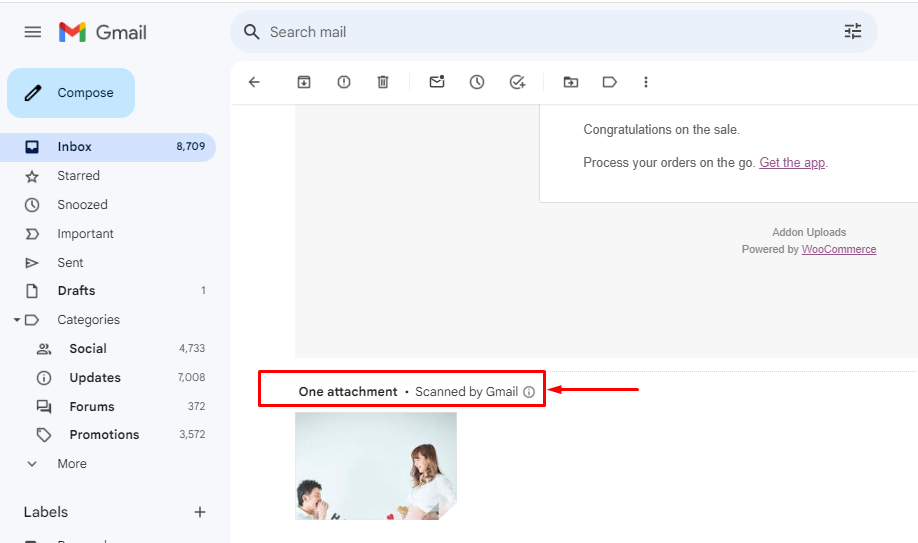
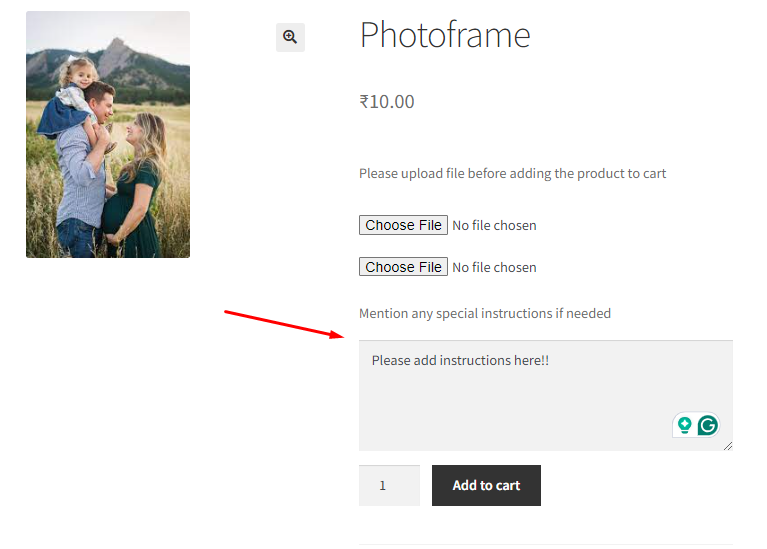
We are excited to introduce several new features designed to streamline your upload process and enhance communication. With the new user-friendly setting, you can now share special instructions via a text area during file uploads, making it easier for customers to provide additional details with their submissions. Additionally, files uploaded can now be conveniently sent as attachments via email to site administrators, facilitating smoother order management. We have also implemented a new setting to exclude links in emails or the Order Received page, giving you greater control over the content shared with customers.
Improved User Experience:
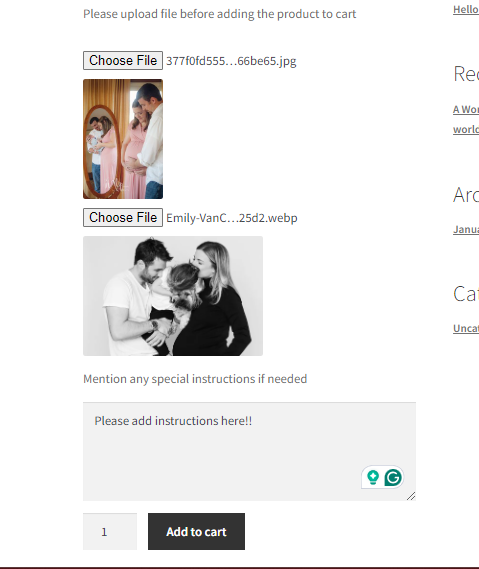
We understand the importance of a seamless and intuitive user experience. That’s why we have added a preview feature that allows you to view image previews upon file selection, ensuring confidence in the files you upload. We have also addressed previous resolution reduction issues, ensuring that uploaded images retain their full resolution for crisp and clear visuals. Plus, we have fixed bugs that were impacting the cart and checkout pages, as well as issues with products set to ‘Mandatory Upload’ being added to the cart unintentionally.
At File Upload Pro, we pride ourselves on our exceptional support service. Our team is always ready to provide a smile and a solution, ensuring that you get the assistance you need whenever you need it.
Upgrade to File Upload Pro 3.7.0 today and experience the difference for yourself. Elevate your upload experience and unlock a world of possibilities with our feature-rich plugin. Thank you for choosing File Uploads Addon for WooCommerce Pro.
Please let us know in the comments below if you have any specific questions
WooCommerce store owners across various industries such as stores selling digital products, customized gift shops, printing shops, and event planners can greatly benefit from integrating a File Uploads Addon for WooCommerce Pro plugin into their online stores. The File Uploads Addon plugin has become an indispensable tool for WooCommerce store owners looking to enhance customer interaction, personalize the shopping experience, and meet the diverse needs of their clientele.
Are you ready to take your WooCommerce experience to the next level? Many of our current users have been reaching out, eager to streamline the bulk creation or editing process by enabling the File Uploads option for their products. In this blog post, we shall be showcasing an integration of File Uploads Addon for WooCommerce with a Bulk Editor plugin called Smart Manager for WordPress by StoreApps. This plugin will not only simplify the process but also enhance your overall productivity.
Understanding the Default Setting of File Uploads Addon for WooCommerce Pro plugin
By default, our File Uploads Addon for WooCommerce Pro does not enable the upload file option for all products when the admin activates the plugin.
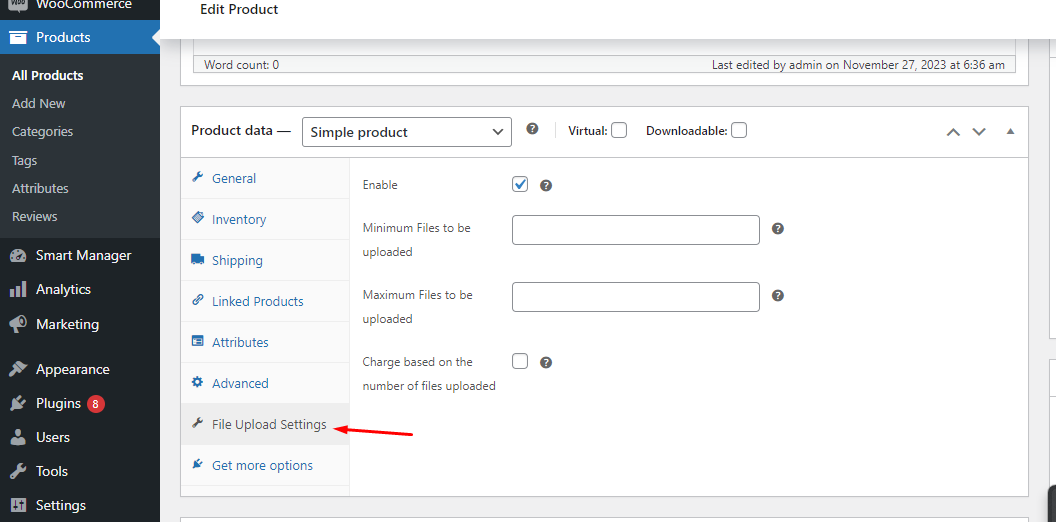
To enable the file upload option with the help of our plugin kindly visit the individual product page and in the Product Data tab you will find a new option named ‘File Upload Settings’. On clicking this option you will see various options along with ‘Enable’.
Why isn’t the File Uploads option Enabled by Default?
You might have noticed that our File Uploads Addon for WooCommerce Pro does not enable the file upload option for all products by default. Wondering why? Well, here is the scoop – we want to ensure a seamless experience for administrators and prevent potential issues on the front end. Enabling this option across the board as soon as the plugin is activated could create chaos for those admins who prefer a more selective approach.
Introducing the Game-Changer: Smart Manager Plugin by StoreApps
Meet the Smart Manager Plugin by StoreApps – your new best friend for managing products on WooCommerce. This amazing tool gives you super control and makes things super easy. It helps WooCommerce Shop Managers like you boost the features of our File Uploads Addon for WooCommerce Pro without any hassle. Get ready for a smoother, more powerful experience!
How It Works
The integration of our plugin with the Smart Manager Plugin is a game-changer for those seeking a holistic approach to managing file uploads option. Admins can effortlessly add our plugin columns to the Smart Manager interface, providing a centralized hub for product management.
The Smart Manager plugin works just like an Excel spreadsheet. So making changes and navigating is fast and simple! Select a dashboard and start making changes instantly.
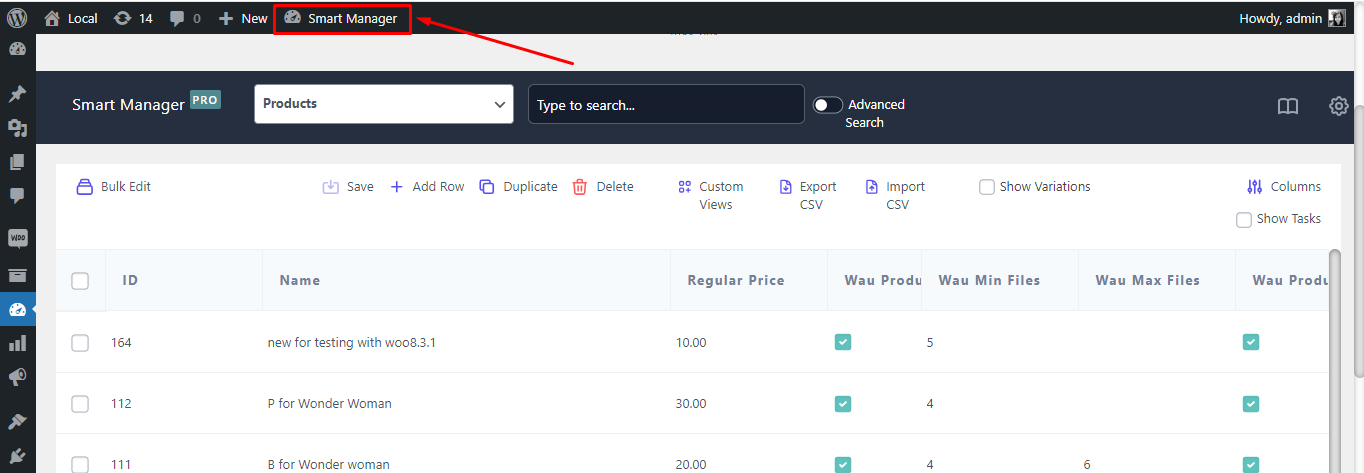
There is an option named Columns in the above screenshot. On clicking that you will find some of the product fields. This option is named ‘Column Manager – Show/Hide Columns’. You can simply drag and drop the columns between ‘Enabled’ and ‘Disabled’ options. And then lastly click on the ‘Update’ button to save the changes.
The columns that are present under the ‘Enabled’ option will come on your Smart Manager dashboard.
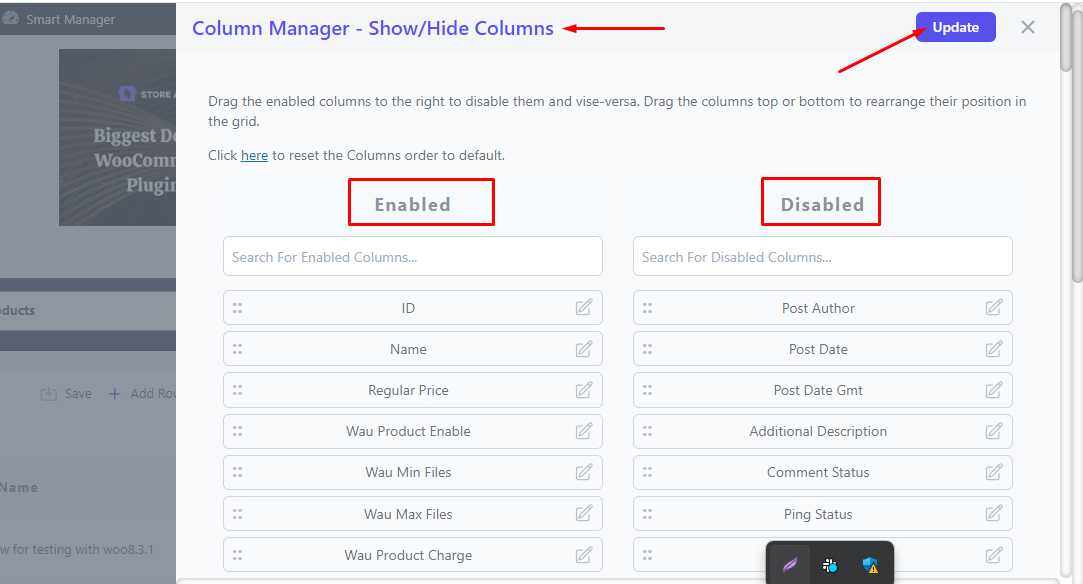
What if the users cannot see your plugin data in Smart Manager?
If the plugin data is not coming in the Smart Manager plugin then you would need to save at least a single product with that custom plugin fields from WooCommerce edit product page. Then only Smart Manager will detect those custom fields and will display them in the dashboard.
Bulk Enable and Disable with Ease
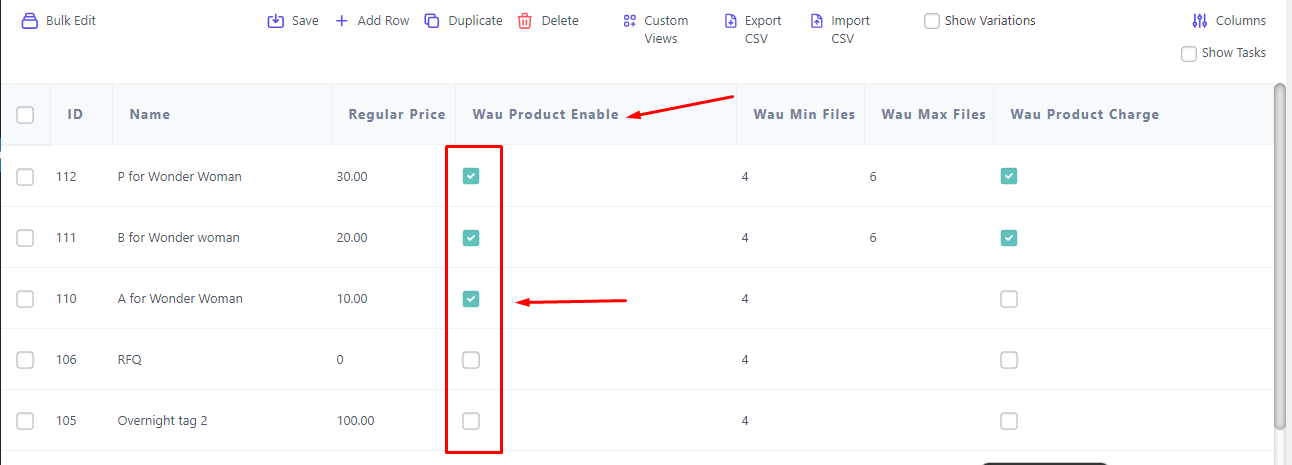
The beauty of this integration lies in its simplicity. Admins can now navigate through their product list and make strategic decisions with just a few clicks. By ticking the file uploads option for selected products, they can seamlessly enable or disable this feature in bulk, saving valuable time and effort.
Fine-Tune Settings with Precision
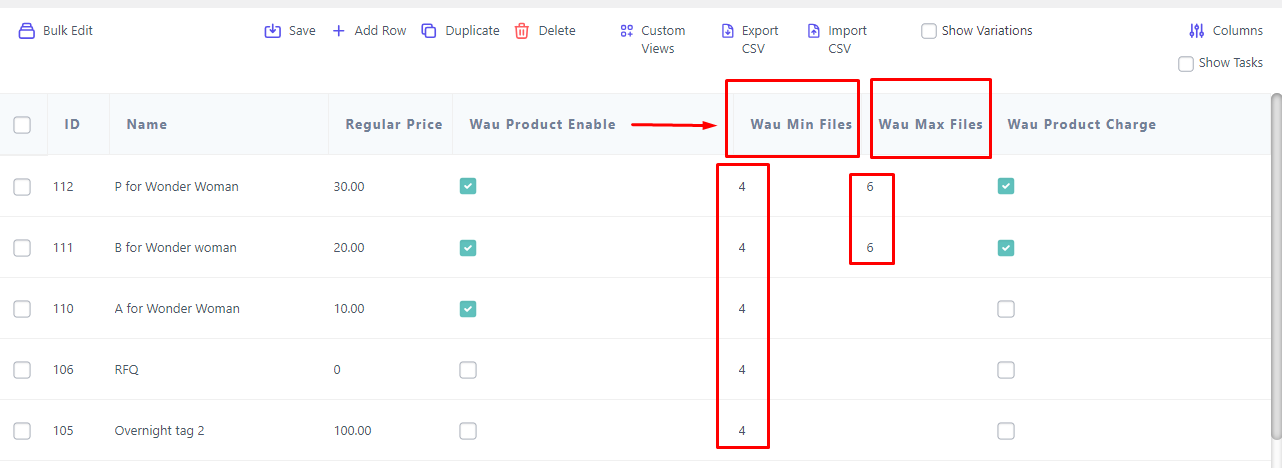
But wait, there is more! Smart Manager Plugin not only empowers admins to enable or disable the upload file option in bulk but also allows for fine-tuning specific settings. Whether it is defining the minimum or maximum files to be uploaded, these granular controls are now at your fingertips, thanks to the seamless integration with our plugin.
How to locate specific plugin data using WooCommerce Smart Manager Advanced Search functionality?
WooCommerce Smart Manager Advanced Search functionality lets you get to specific results by allowing you to put multiple conditions while searching.
You can also use the Advanced Search with multiple AND, multiple OR, multiple AND + OR conditions and search operators (<,>,=,<=, >=, is, contains, etc.)
Example – Search for SKU – WC01 and price >= $100.
Why Smart Manager?
1. Efficiency Redefined:
Smart Manager streamlines product management tasks, enabling administrators to make quick, informed decisions without the need for extensive manual intervention.
2. User-Friendly Interface:
The intuitive interface ensures a seamless experience, even for those new to backend management. The simplicity of Smart Manager enhances accessibility for all administrators.
3. Unmatched Control:
Gain unparalleled control over product settings, allowing for precise adjustments to meet the specific needs of your online store.
Conclusion: A Harmonious Blend of Functionality
In conclusion, the synergy between our File Uploads Addon for WooCommerce Pro and the Smart Manager Plugin presents a harmonious blend of functionality. It addresses the specific needs of admins who wish to extend the file upload option strategically across their product range without compromising on control.
As we embark on this journey of empowerment and efficiency, we invite you to explore the possibilities that this integration unlocks. Elevate your product management experience, revel in the warm efficiency of Smart Manager, and witness your WooCommerce file uploads seamlessly align with your unique business goals.
Ready to revolutionize your WooCommerce store? Take charge of your product management journey with the dynamic duo. Explore the endless possibilities with Imaginate Solutions and StoreApps – because managing your WooCommerce store should be as delightful as the products you sell. Discover the simplicity of bulk customization and elevate your productivity. Dive into the world of seamless product management today! 🌟
Have questions or need further clarification? Feel free to drop your queries in the comments below. Your feedback is important to us, and we are here to assist you every step of the way!
In the ever-evolving landscape of e-commerce, staying ahead of the curve and offering diverse payment options to your customers is essential. Integrating popular mobile payment platforms like Zelle, Venmo, Cash App, Apple Pay, and Meta Pay with your WooCommerce store can be a game-changer. In this comprehensive guide, we will walk you through the process of creating a customized payment gateway that seamlessly integrates these payment methods into your WooCommerce store. With the help of the Custom Payment Gateways for WooCommerce plugin, you can enhance the checkout experience for your customers and expand your payment options.
Why Diversify Your Payment Options?
Before we dive into the technical aspects of integration, let’s discuss why it’s essential to offer diverse payment options. The modern consumer is all about convenience, and providing multiple ways to pay for products or services can significantly improve the user experience. Zelle, Venmo, Cash App, Apple Pay, and Meta Pay are increasingly popular, especially among mobile users. By integrating these payment methods, you cater to a broader audience and potentially increase your conversion rate. It’s a win-win situation for both you and your customers.
Step 1: Creating an Offline WooCommerce Custom Payment Gateway
The foundation of integrating Zelle, Venmo, Cashapp, Apple Pay, and Meta Pay with WooCommerce is to create a custom payment gateway. Here’s how you can do it:
- Install Custom Payment Gateways for WooCommerce Plugin: To get started, you need to install the Custom Payment Gateways for WooCommerce plugin. Once installed, activate it.
- Custom Payment Gateway Setup: Navigate to your WordPress dashboard and go to WooCommerce > Settings > Payments. You will see the newly added custom payment gateway options. Click on the “Custom Gateway” to configure it.
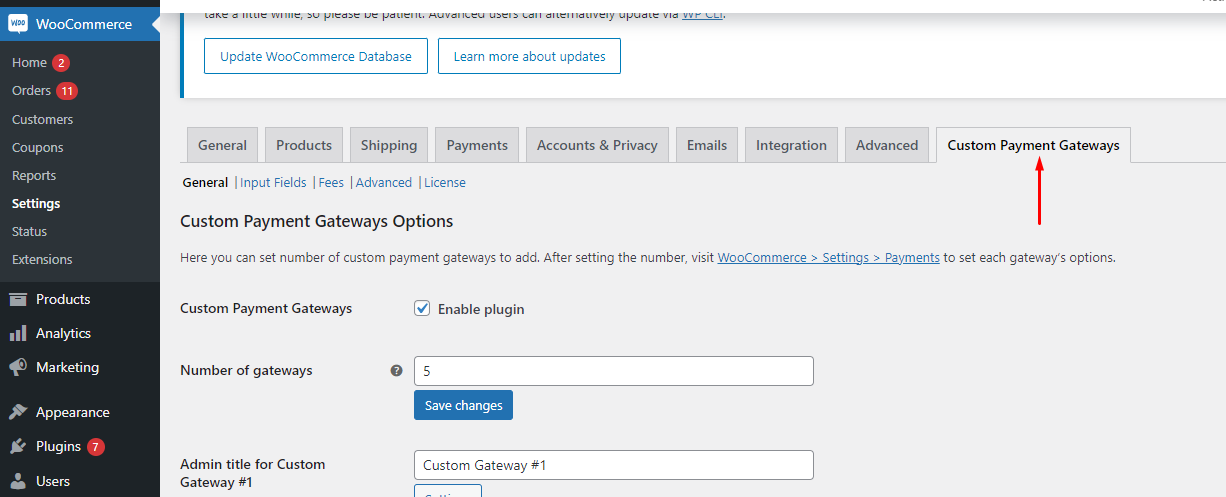
- Gateway Settings: In the “Custom Gateway” settings, you can name your gateway, set a description, and choose an icon to represent it. This step helps users identify the payment method they want to use.
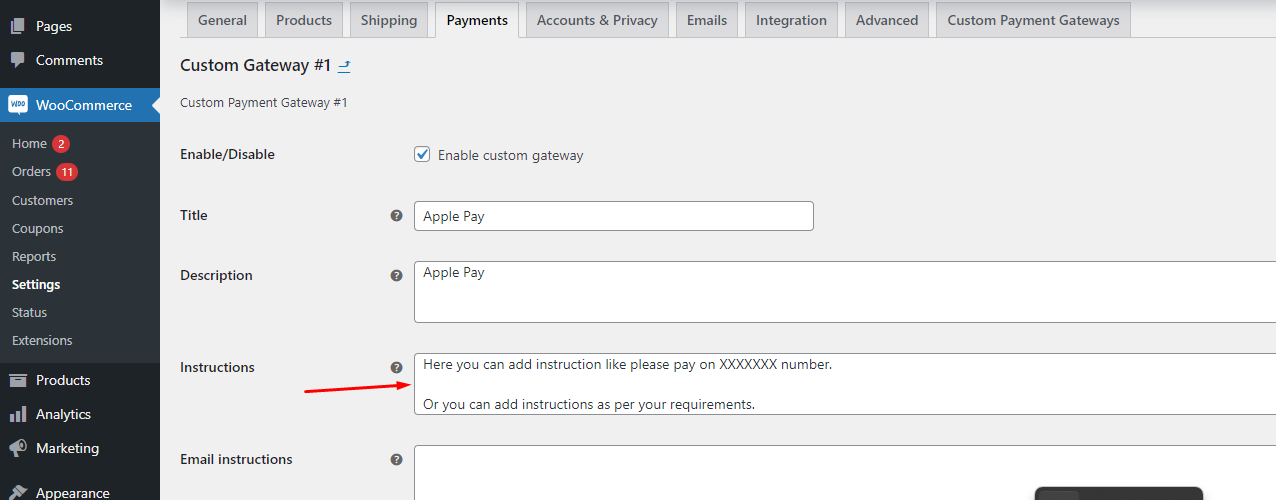
- Payment Method Configuration: In this section, you can configure your custom payment gateway to accept Zelle, Venmo, Cash app, Apple Pay, and Meta Pay. Each of these methods has its requirements, and you may need to consult their respective documentation for specific integration details.
- Testing and Troubleshooting: Before making this custom payment gateway live, it’s crucial to thoroughly test it. You should conduct multiple test transactions to ensure that payments are processed correctly and that customers are redirected to the desired page.
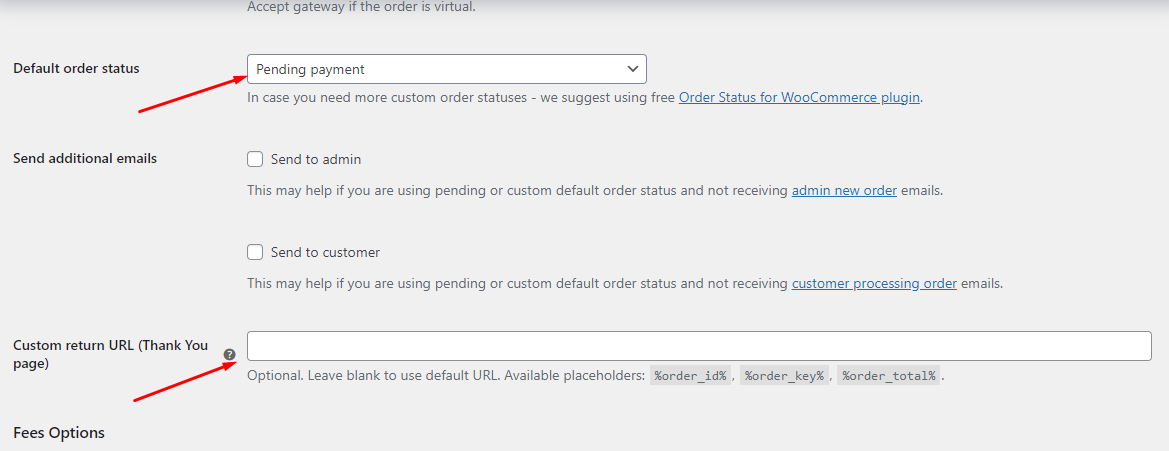
- Set Order Status: By default, the order status will be “pending.” This is normal as the payment process progresses. As the store owner, you can update the order status to reflect the actual state of the transaction.
- Custom URL for Redirect: The Custom Payment Gateways for WooCommerce plugin also allows you to set a custom URL to which customers will be redirected after a successful payment. This feature provides you with the flexibility to guide customers to a specific page on your site, rather than the default “Thank You” page.
Step 2: User-Friendly Instructions
User experience is crucial in any e-commerce integration. It’s essential to provide clear instructions to your users to ensure a smooth checkout process. Here’s how you can do it:
- Frontend Integration: Your customers should see clear and user-friendly instructions on the front end of your WooCommerce store. Make sure they understand the payment options and the steps they need to follow.
- Payment Selection: When customers proceed to checkout, they should be able to select their preferred payment method, such as Zelle, Venmo, Cash App, Apple Pay, or Meta Pay. The user interface should be intuitive and straightforward.
- Payment Process: Provide step-by-step instructions on how the payment process works for each method. For example, explain how to scan a QR code for a Venmo transaction or how to use Apple Pay for a one-click payment.
- Contact Information: Make sure customers know where to reach out for support or questions. Offering excellent customer support is vital to build trust with your customers.
Step 3: Custom URL and Redirection
One of the benefits of the Custom Payment Gateways for WooCommerce plugin is the ability to set a custom URL for redirection after payment. This feature allows you to guide customers to a specific page on your website. Here’s how it works:
- Custom URL Configuration: In the plugin settings, you can specify the URL to which customers should be redirected after a successful payment. This URL can be a “Thank You” page, a receipt page, or any other relevant destination.
- Enhanced User Experience: By redirecting customers to a custom page, you can offer them a more personalized experience. You might consider a page that offers additional product recommendations or invites customers to join your newsletter.
- Engagement Opportunities: The custom URL redirection provides an opportunity to engage customers further, such as inviting them to follow you on social media, sign up for exclusive offers, or leave a review.
Step 4: Monitoring and Order Status Updates
After integrating Zelle, Venmo, Cashapp, Apple Pay, and Meta Pay with your WooCommerce store, it’s essential to monitor the order status and make necessary updates. Here’s what you should keep in mind:
- Order Processing: Keep a close eye on the order status as payments are made. Understand that certain mobile payment methods might have different processing times. Communicate with customers if there are delays in payment confirmation.
- Updating Order Status: As the store owner, you have the authority to update the order status as it progresses through the fulfillment process. It’s essential to maintain transparency with your customers by providing updates on their orders.
- Customer Notifications: Ensure that customers receive notifications regarding order updates. This can be done via email, SMS, or through your WooCommerce store, depending on your communication preferences.
Conclusion
Integrating Zelle, Venmo, Cashapp, Apple Pay, and Meta Pay with WooCommerce payment gateways is a strategic move that can enhance your e-commerce business. By creating a customized payment gateway and providing user-friendly instructions, you can offer your customers a seamless and convenient checkout experience. Moreover, utilizing the custom URL redirection feature allows you to engage your customers further and increase the chances of repeat business. Don’t forget to monitor order statuses and keep customers informed at every step of the process. With these steps, you can embrace the future of e-commerce and cater to the diverse preferences of your customer base.
Diversifying your payment options has never been easier. With a single, straightforward integration using the Custom Payment Gateways for WooCommerce plugin, you can unlock the potential of Zelle, Venmo, Cashapp, Apple Pay, and Meta Pay, and offer a more inclusive shopping experience to your customers.
In today’s rapidly evolving e-commerce landscape, where businesses are increasingly shifting their operations online, shipping companies have emerged as the unsung heroes of the shopping experience. These logistics experts play a pivotal role in ensuring that products reach customers swiftly and efficiently.
However, the default WooCommerce Shipping Methods may not always align with the intricate needs of shipping companies. Each shipping company boasts its unique set of regulations, pricing structures, and shipping methods. To cater to these diverse requirements, shipping companies often seek customized solutions that seamlessly integrate with their existing systems.
This is where “Custom Shipping Methods for WooCommerce” comes into play. Our robust plugin is designed to empower businesses to enhance their online stores with advanced shipping options. Whether you are a WooCommerce user seeking greater flexibility in your shipping choices or a shipping company looking to streamline your operations, our plugin can be the game-changer you’ve been searching for.
Our plugin enables users to create customized shipping rules, taking into account a wide array of factors, including distance, quantity, weight, and cost. With a range of dedicated WooCommerce shortcodes at your disposal, you can tailor your shipping solutions to meet your unique business needs.
For instance, you can set up rules that offer free shipping for orders surpassing a specific dollar amount or charge a flat shipping rate based on the weight of items within an order. Our plugin also allows you to create rules specific to certain products, categories, or geographical regions.
With “Custom Shipping Methods for WooCommerce,” you gain control over your shipping options, ensuring a more tailored and seamless customer experience. The flexibility offered by our plugin can be visualized through various WooCommerce shortcodes, each catering to different usage scenarios.
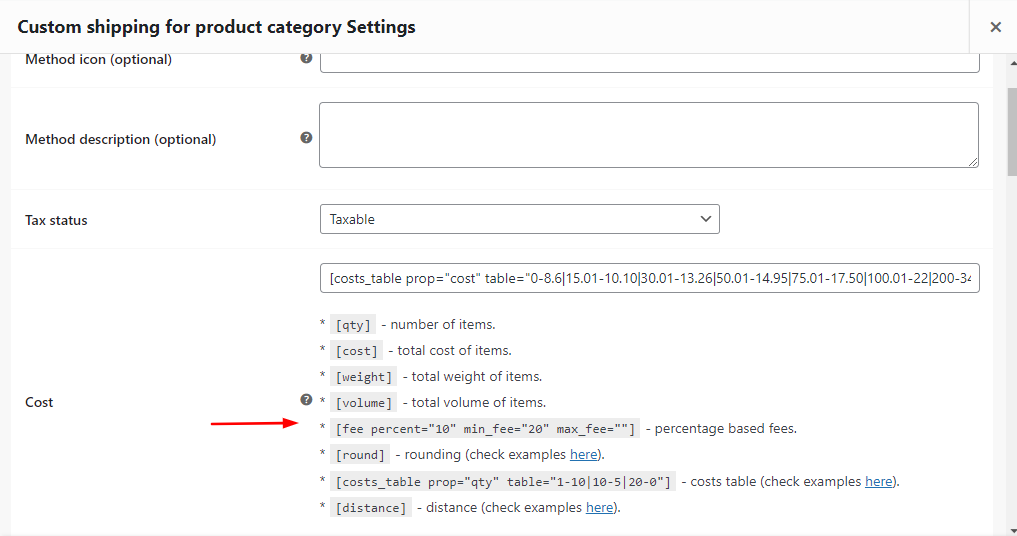
Let’s delve into some practical applications of these WooCommerce shortcodes:
1. Custom shipping based on Distance
Customized shipping based on distance can be especially useful for WooCommerce sellers who have a wide customer base and want to offer fair and transparent shipping costs to all their customers, regardless of where they live. It can also be a helpful tool for customers who want to know exactly how much they will be paying for shipping before they complete their purchase.
For this, one can use [distance] shortcode and fulfill their requirements. Let us understand this with the help of some use cases:
Shipping cost till 15 km should be 0, then for 15 km to 50 km shipping cost should be $20, for 51 km to 100 km shipping cost should be $30 and for 101 km and more the standard shipping cost should be $40.
Formulae for this:
[costs_table prop=”distance” table=”0-0|15-20|50-30|100-40″ key=”YOUR GOOGLE API KEY” default_distance=”100″ units=”km” debug=”yes”]
Shipping cost should be 0 till 15 km and after 15 km it should be 1.5 times the distance.
Formulae for this:
1.5*[distance key=”YOUR GOOGLE API KEY” default_distance=”15″ debug=”yes” units=”km”]
2. Custom shipping based on Quantity
Customized shipping based on quantity can be useful for WooCommerce sellers who want to offer tiered shipping costs based on the quantity of items in an order. This can be particularly beneficial for businesses that sell items in bulk or have different shipping requirements for different quantities of products. Here’s an example of how you can implement custom shipping based on quantity using shortcodes:
Let’s say you want to charge $5 for shipping if the quantity of items in the order is less than or equal to 5, $10 if the quantity is between 6 and 10, and $15 if the quantity is greater than 10.
Formulae for this:
[costs_table prop=”qty” table=”0-0|5-5|10-10|15-*”]
Note: This is a hypothetical example and you can adjust the quantity ranges and shipping costs as per your specific business requirements.
3. Custom shipping based on Weight
Customized shipping based on weight can be useful for WooCommerce sellers who want to charge shipping costs based on the weight of the items in an order. This can be particularly relevant for businesses that sell items with varying weights and need to calculate shipping costs accordingly. Here’s an example of how you can implement custom shipping based on weight using shortcodes:
Let’s say you want to charge $5 for shipping if the total weight of items in the order is less than or equal to 5 lbs, $10 if the total weight is between 6 and 10 lbs, and $15 if the total weight is greater than 10 lbs.
Formulae for this:
[costs_table prop=”weight” table=”5-5|10-10|15-*”]
Note: This is a hypothetical example and you can adjust the weight ranges and shipping costs as per your specific business requirements. Additionally, make sure to accurately input the weights of your products and consider using a reliable weight measurement system to ensure accurate shipping calculations.
4. Custom shipping based on Cost
Customized shipping based on cost can be useful for WooCommerce sellers who want to charge shipping costs based on the total cost of items in an order. This can be particularly relevant for businesses that offer tiered shipping rates based on the order value. Here’s an example of how you can implement custom shipping based on cost using shortcodes:
Let’s say you want to charge $5 for shipping if the total cost of items in the order is less than or equal to $50, $10 if the total cost is between $51 and $100, and $15 if the total cost is greater than $100.
Formulae for this:
[costs_table prop=”cost” table=”50-5|100-10|-*”]
Note: This is a hypothetical example and you can adjust the cost ranges and shipping costs as per your specific business requirements. Additionally, make sure to accurately input the prices of your products and consider using a reliable currency conversion system to ensure accurate shipping calculations.
In conclusion, custom shipping methods based on distance, quantity, weight, or cost offer a powerful tool for online sellers to provide transparent and fair shipping costs. Leveraging shortcodes and other tools, sellers can effortlessly implement custom shipping rules tailored to their unique business requirements, ensuring a seamless shopping experience for their customers.
Embracing custom shipping based on diverse factors empowers sellers to fine-tune their shipping solutions to suit their specific needs, provide transparent pricing to their customers, and enhance their overall e-commerce operations.
We welcome your inquiries and feedback on our plugin. Please feel free to share your thoughts in the comments section below.
WordCamps are not just regular events; they’re lively gatherings where people share what they know, build connections, and get inspired. Our recent WordCamp experience at WordCamp Mumbai showed us just how important these gatherings can be.
The Importance of WordCamps
WordCamps serve as essential platforms for WordPress enthusiasts. They offer a space for individuals with a shared love for WordPress to come together, learn, and grow. These events are not only about technical insights but also about fostering a sense of belonging to the WordPress community, which is a diverse and passionate family.
Our Unique WordCamp Experience
This year’s Mumbai WordCamp was particularly special for us. Not only did we attend as eager participants, but one of our team members, Dhara Shah had the honor of being selected as a speaker. The topic was “The Art of Turning Angry Users into Loyal WordPress Advocates.” We’re thrilled to share the insights and slides from this session, which you can find here. It was an engaging and informative session that garnered positive feedback and sparked valuable discussions.

Beyond the speaking engagement, we had the opportunity to connect with like-minded individuals who share our passion for WordPress. These interactions led to the creation of friendships that we will cherish for a lifetime.
Inspirational Speakers
The Mumbai WordCamp featured an array of inspiring speakers and workshops that left a lasting impact on us. Here are some highlights:
“You can be on this stage too – public speaking and storytelling at WordCamps and beyond” by Nirav Mehta: An artist in his own right, Nirav’s session on public speaking and storytelling was truly motivating, inspiring us to aspire to be part of such sessions in the future.
“Building a Robust Content Engine” by Yashwardhan Rana: Yashwardhan’s insights into creating a strong content engine were invaluable.
“The Possibilities Of AI in WordPress” by Aashish Pahwa: A fascinating exploration of AI’s potential within the WordPress ecosystem.
“Benefits of Contributing to WordPress Open Source Projects” by Ganga Kafle: Ganga’s talk highlighted the significance of contributing to the open-source WordPress project.
“Empowering Women in the WordPress Community” by Nidhi Jain: Nidhi’s session focused on the importance of empowering women within the WordPress community.
“How to Migrate an Enterprise WP Application Without Losing Your Mind?” by Lax Mariappan: A practical and informative guide to migrating complex WP applications.
In addition to the above wonderful sessions, there were other fantastic presentations too. Feel free to explore the speakers’ profiles for more enriching insights here.
Gratitude and Looking Forward
We extend our heartfelt gratitude to the organizers, speakers, and fellow attendees for making the Mumbai WordCamp an unforgettable experience. It reaffirmed that the WordPress community is not merely a group of individuals but a family of like-minded souls who are passionate about creating, sharing, and evolving together.
A special thanks to Meher Bala for her exceptional dedication to promoting and empowering women in the WordPress community. Thanks to her advocacy, this WordCamp saw an inspiring balance, with an equal representation of women speakers. Below this paragraph, you can explore the snapshots celebrating the remarkable Women in WordPress who graced our event.

Women WordCamp Experience 
Women WordCamp Experience 
Women WordCamp Experience 
Women in WordPress 
Women in WP




Credits for the captivating event snapshots go to Lokesh Prem Budhrani, an enthusiastic volunteer at WordCamp Mumbai, who expertly captured the essence of our memorable journey.
WordCamp Mumbai, you welcomed us warmly, and we’re truly appreciative. Our youngest team member also had a blast with the Wapuu stickers and the fantastic swags. It won’t be long before he becomes an active part of this community 😉.
As our WordPress journey keeps unfolding, we’re eagerly anticipating the upcoming WordCamp adventures in India this year: WordCamp Udaipur 2023 and WordCamp Ahmedabad 2023. In the meantime, let’s nurture the vibrant WordPress spirit, keeping it alive and thriving.
Finally, we want to express our sincere appreciation for granting us the opportunity to speak at this remarkable event. It was a privilege and an honor to be a part of the Mumbai WordCamp.
#WordCampMumbai #WordPressCommunity #MumbaiDiaries #WordPressPassion #WordPressExperience